How to Install an EA in MT5
About five minutes. You need MetaTrader 5 on a computer (or a VPS) and the .ex5 file you downloaded. Tap a picture to see it full size. Not chosen an EA yet? Read how to choose an MT5 EA.
Step 1 of 8
Download the EA
Press Download on the EA's page, or on the My EAs tab of your account. You get one .ex5 file.
Do not rename the file. A free EA needs your partner MT5 account to be confirmed first; see the FAQ.
Step 2 of 8
Open the MT5 data folder
This is the folder where MT5 keeps your EAs.
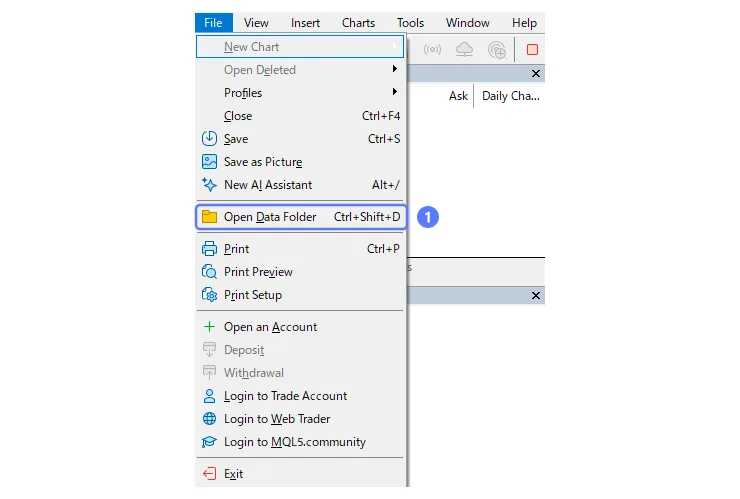
- Choose File → Open Data Folder. Shortcut: Ctrl+Shift+D.
Step 3 of 8
Copy the file into MQL5 / Experts
Put the .ex5 file in the Experts folder.


- Open the MQL5 folder, then open Experts.
- Drop the
.ex5file here. A subfolder works too.
Step 4 of 8
Refresh the Navigator
Make MT5 find the new file.
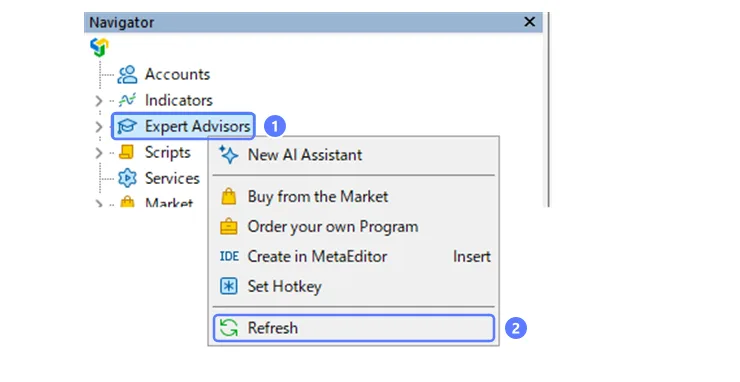
- Open the Navigator (Ctrl+N) and right-click Expert Advisors.
- Choose Refresh. The EA appears in the list.
Not in the list? Restart MT5.
Step 5 of 8
Allow the licence check (WebRequest)
The EA checks its licence with our server. MT5 blocks this until you allow the address.
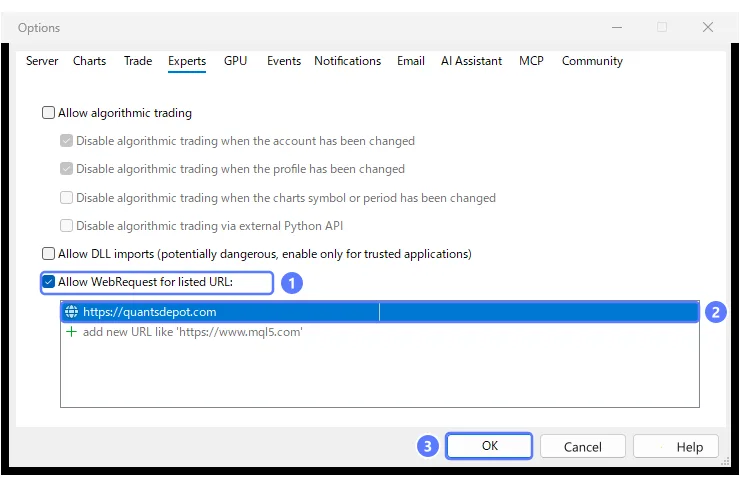
- Open Tools → Options → Experts. Tick Allow WebRequest for listed URL.
- Double-click add new URL and type
https://quantsdepot.com. - Press OK.
Without this the EA cannot confirm your licence and will not trade. See the FAQ for how the check works.
Step 6 of 8
Turn on Algo Trading
EAs cannot place trades while Algo Trading is off.
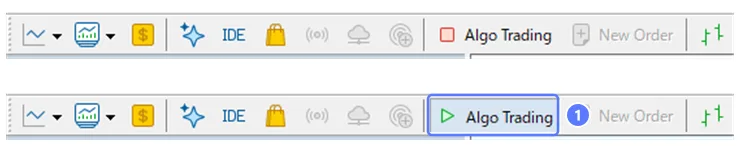
- Press the Algo Trading button. The icon turns from a red square to a green triangle.
Step 7 of 8
Attach the EA to a chart
Open one chart for the symbol and timeframe on the EA's page, for example EUR/USD on H1.
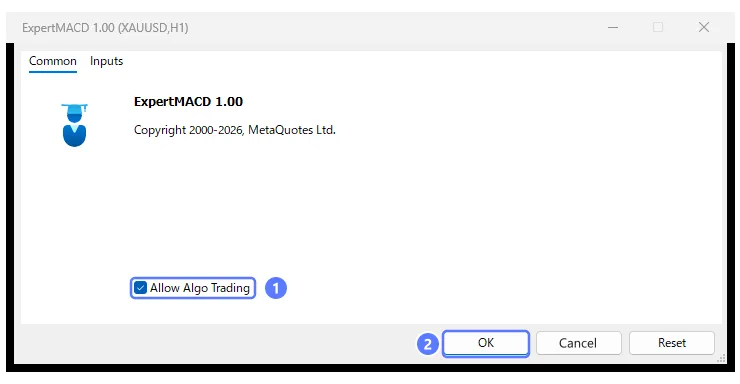
- Drag the EA from the Navigator onto the chart. On the Common tab, tick Allow Algo Trading.
- Leave the inputs as they are, then press OK.
The settings are locked to what we measured.
Step 8 of 8
Check that it runs
Look at the top right corner of the chart.
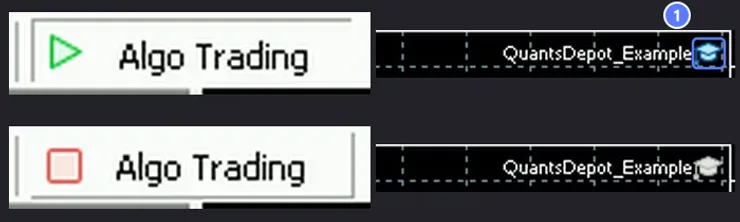
- The EA name and a blue cap icon mean it is running. Older MT5 versions show a smiley face. A grey icon (or a sad face) means Algo Trading is off.
Run one EA per chart. The licence is for the MT5 account number you entered, so log in to that account.
How to find your MT5 account number
The licence is tied to your MT5 account number, so enter the right one.
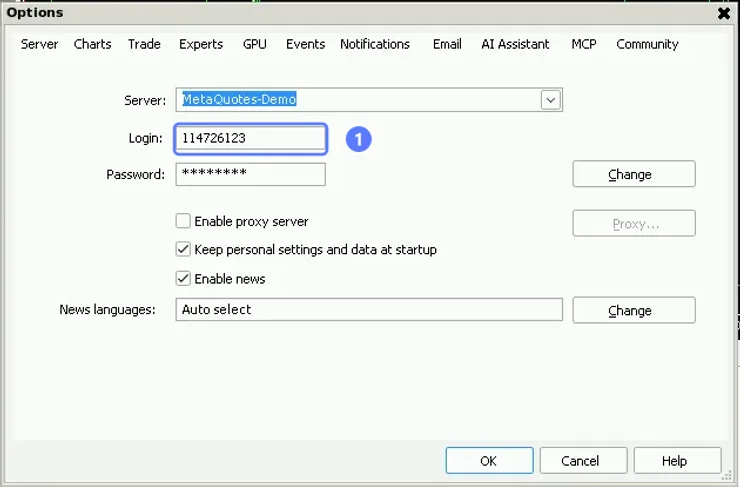
- In MT5 choose Tools → Options → Server. The number in Login is your account number.
Never share your password.
Re-installing the EA (when updating)
When a new version comes out, remove the old EA from its chart first.
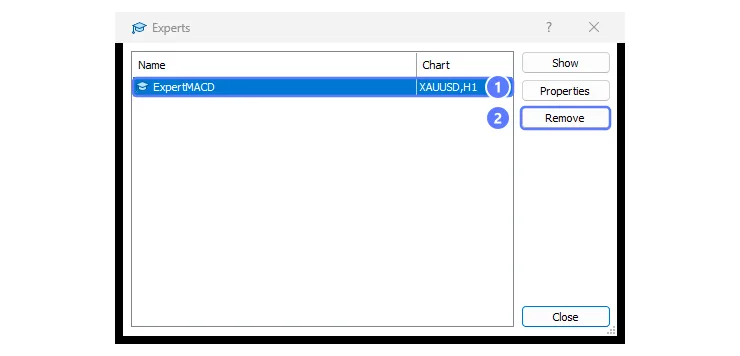
- Right-click the chart and choose Expert List. Select the EA.
- Press Remove.
Then copy the new .ex5 file over the old one (steps 2 and 3). Refresh the Navigator (step 4) and attach the EA again (step 7).
The WebRequest address stays allowed, so you can skip step 5. Keep the same MT5 account the licence is for.
If something does not work
- The EA is not in the Navigator. The file must be in
MQL5/Expertsof the MT5 you are running. Each MT5 installation has its own. Refresh the Navigator or restart MT5. - The EA does not trade. Check that Algo Trading is on and the WebRequest address is added. Log in to the MT5 account the licence is for. The chart must match the symbol and timeframe on the EA's page. The Experts tab at the bottom of MT5 shows the EA's messages.
- Licence moved or refunded. A licence works on one account at a time. See switching MT5 account.
More help: symptom checklist. Still stuck? See the Contact page.